 荒岛
荒岛
Rote并不是传统意义上的笔记软件,与Obsidian、Notion这类软件有本质区别,我个人感觉Rote更像是一个类似Twitter的社交平台,或者微博客、朋友圈之类的。Rote应该更适合记录一些碎碎念,或者简短的内容。
Rote支持自建服务器,且Web UI设计的非常精美,还有iOS客户端可以使用,iOS客户端的UI也好看,说实话第一眼就喜欢上了,当时部署的时候还遇到S3配置的问题请教过作者,作者也很热心的帮忙解决。
这篇文章记录下部署过程,开始前需要准备一个S3服务,不配置S3也能用,但所有需要用到上传文件的功能都将不可用,建议还是配置一下体验完整版。
请注意目前Rote并不完全支持所有S3服务商,使用Rustfs、MinIO等S3实现可能会出现问题。目前只建议使用AWS S3/CF R2/Garage。我这里用的S3实现是Garage,有关Garage的生产环境部署可参考这篇文章。
安装Docker:
apt -y update
apt -y install curl
curl -fsSL https://get.docker.com -o get-docker.sh
sh get-docker.sh
创建目录新建compose文件:
mkdir /opt/rote && cd /opt/rote && nano docker-compose.yml
写入如下内容:
services:
  rote-backend:
    image: rabithua/rote-backend:latest
    pull_policy: always
    container_name: rote-backend
    environment:
      # 配置数据库连接密码,默认密码:pgpassword
      - POSTGRESQL_URL=postgresql://rote:pgpassword@rote-postgres:5432/rote
    ports:
      - "127.0.0.1:18000:3000"
    depends_on:
      rote-postgres:
        condition: service_healthy
    restart: unless-stopped
    command:
      [
        "sh",
        "-c",
        "sleep 15 && bun run dist/scripts/runMigrations.js && bun run dist/server.js",
      ]

  rote-frontend:
    image: rabithua/rote-frontend:latest
    pull_policy: always
    container_name: rote-frontend
    ports:
      - "127.0.0.1:18001:80"
    depends_on:
      - rote-backend
    environment:
      # 配置后端URL
      - VITE_API_BASE=https://rote-backend.example.com
    restart: unless-stopped

  rote-postgres:
    image: postgres:17
    container_name: rote-postgres
    restart: unless-stopped
    environment:
      POSTGRES_USER: rote
      # 配置数据库连接密码,默认密码:pgpassword
      POSTGRES_PASSWORD: pgpassword
      POSTGRES_DB: rote
    volumes:
      - ./pg_data:/var/lib/postgresql/data
    healthcheck:
      test: ["CMD-SHELL", "pg_isready -U rote -d rote"]
      interval: 5s
      timeout: 3s
      retries: 10
      start_period: 30s

networks:
  default:
    name: rote-network
    driver: bridge
启动Rote:
docker compose up -d
配置Ferron反向代理:
nano /etc/ferron.kdl
写入如下内容:
rote-backend.example.com {
    proxy "http://127.0.0.1:18000/"
}

rote.example.com {
    proxy "http://127.0.0.1:18001/"
}
重载Ferron:
systemctl reload ferron
如果遇到Ferron上传速度慢、上传大文件失败等问题,可参考这篇文章解决。
首次访问Rote需要初始化配置,这里先暂时跳过S3存储配置,因为这个页面不支持配置Garage S3:

初始化完成后,在管理员后台->存储设置,继续配置S3存储:
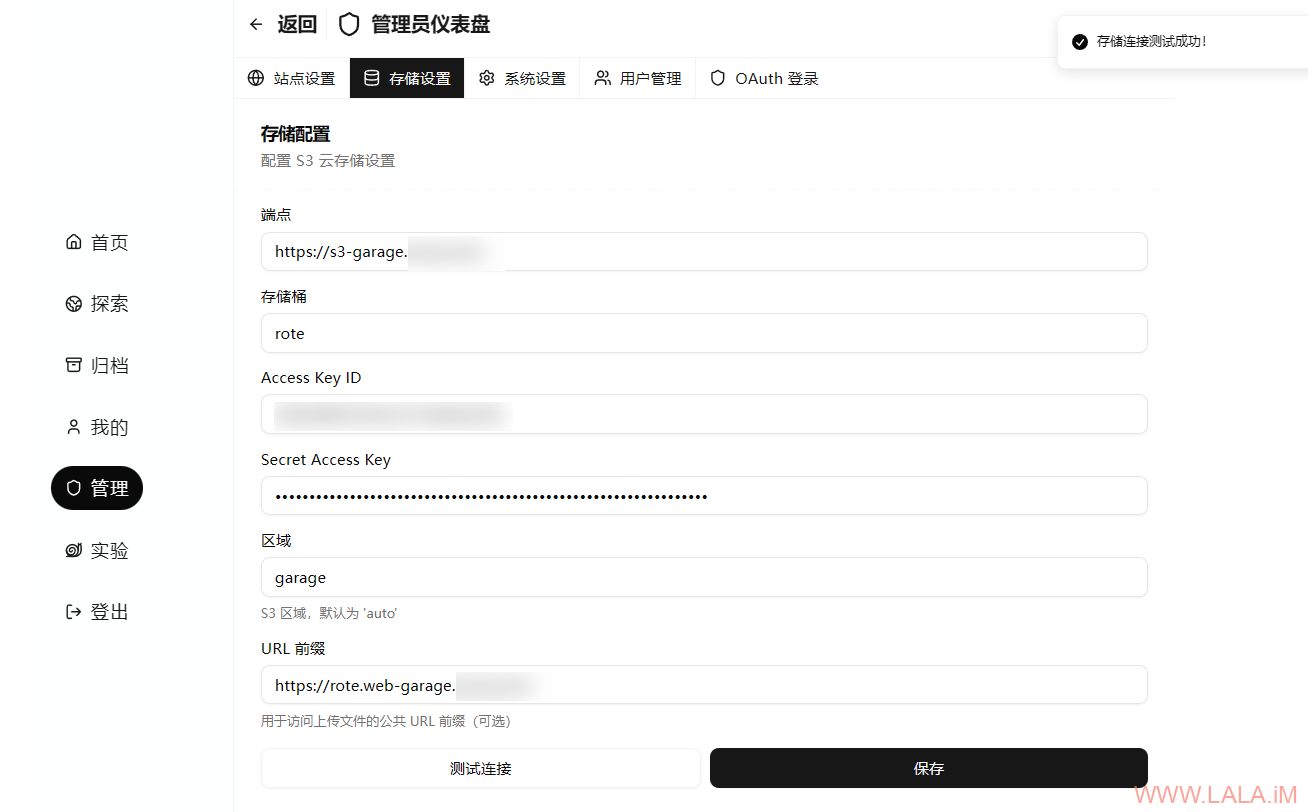
由于我们用的是Garage S3,这里的区域和URL前缀是必须要填写的。
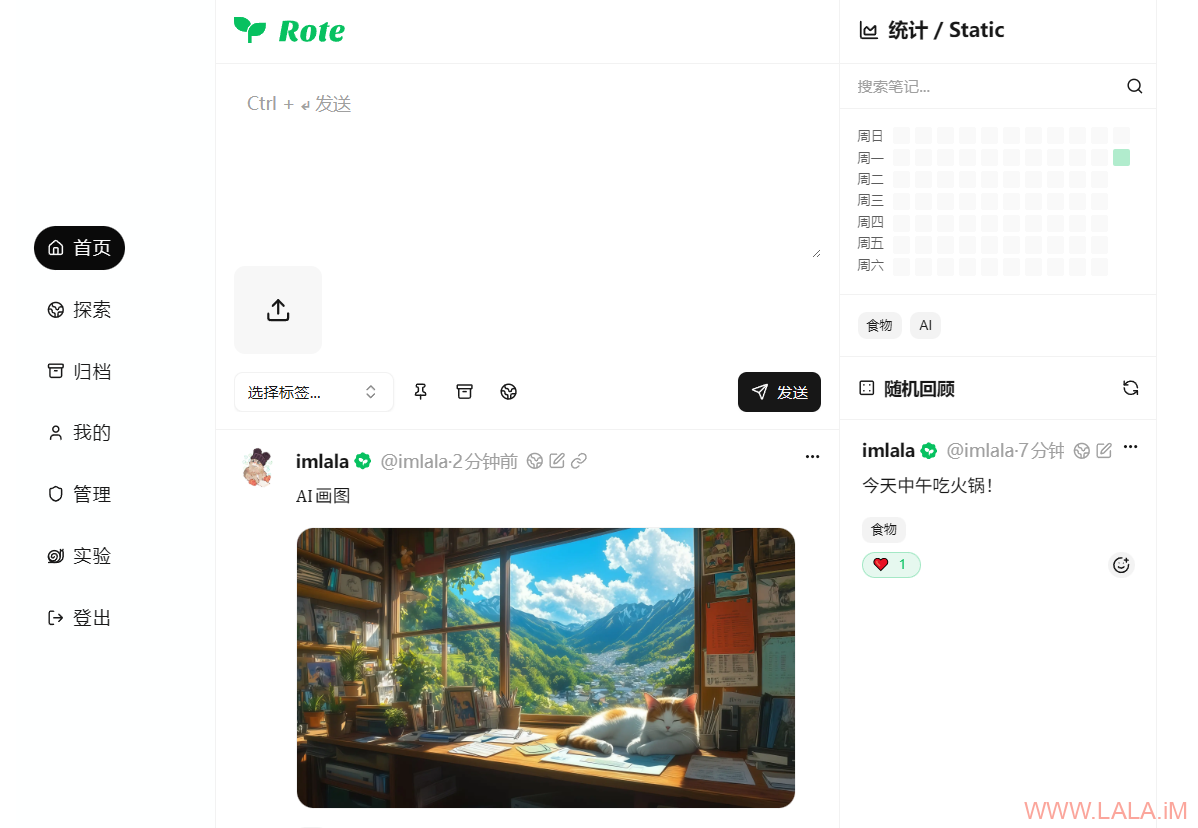
效果如下,首页:
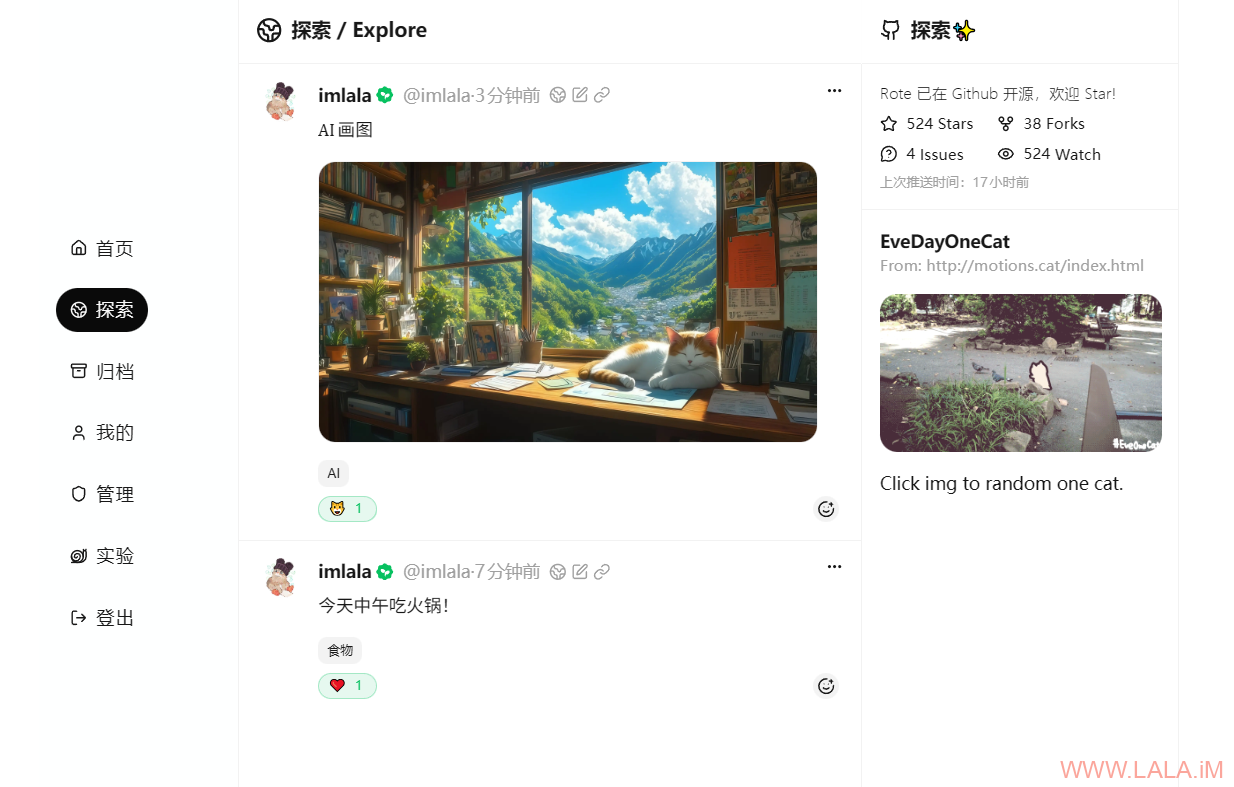
探索页:
个人主页:







来喽,感谢推荐~